
Coffee Shop Menu
Intro
In this project, you will work with a real Flutter app that already runs.
You do not need to create anything from scratch.
Your job is simple:
-
open the project
-
find the TODO STEP comment in code
-
make a small change
-
run the app
-
see the result immediately
Step 0: Open the project in Sandbox
Click Start project to open the app in Sandbox. The project is already fully working - you don’t need to set up anything.
Once Sandbox opens:
-
press Build Project (Ctrl+B)
-
make sure the app starts correctly
Expected result:
You should see the Coffee Shop Menu screen with a list of coffee.
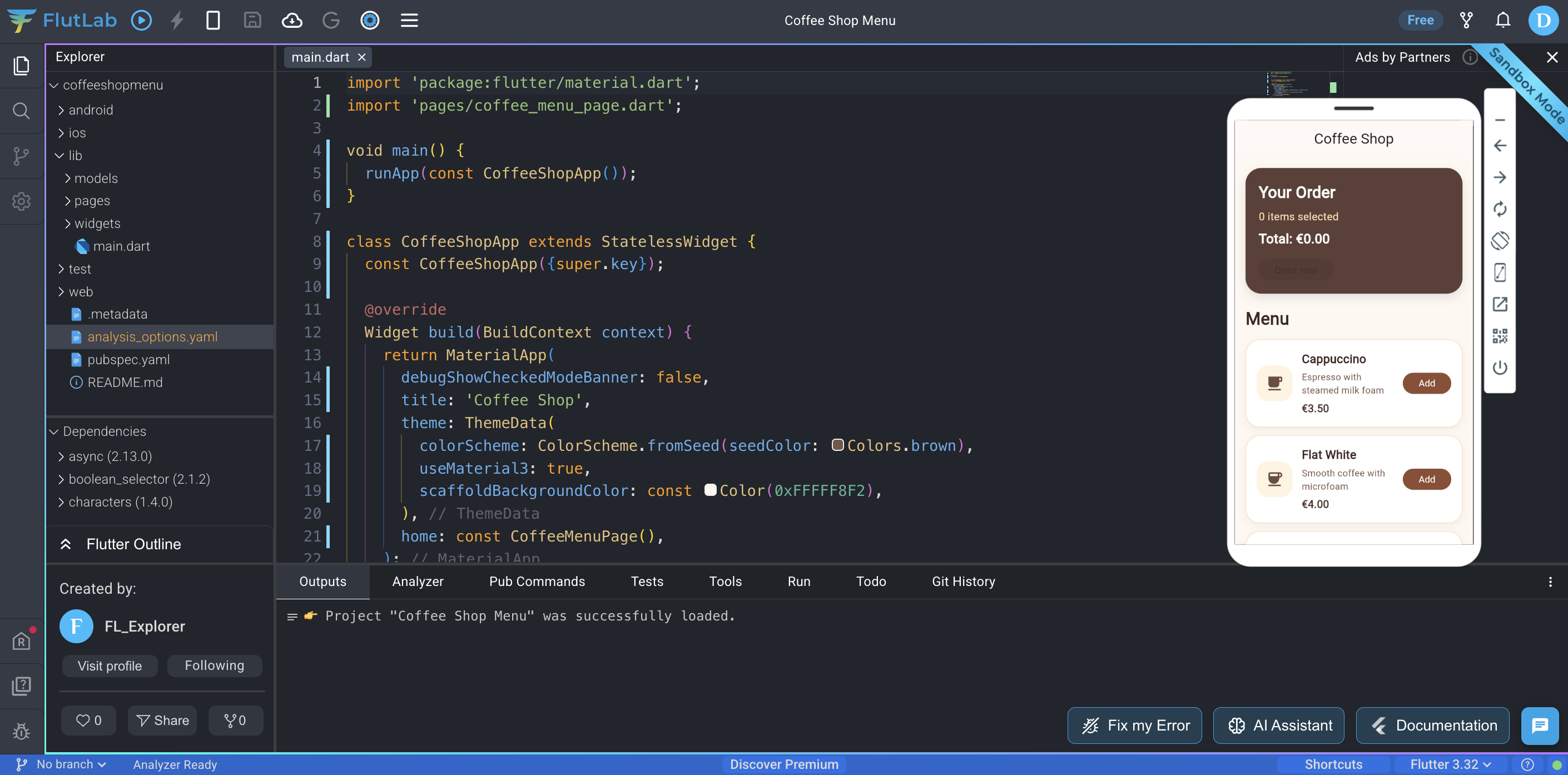
Step 01: Open the Todo panel
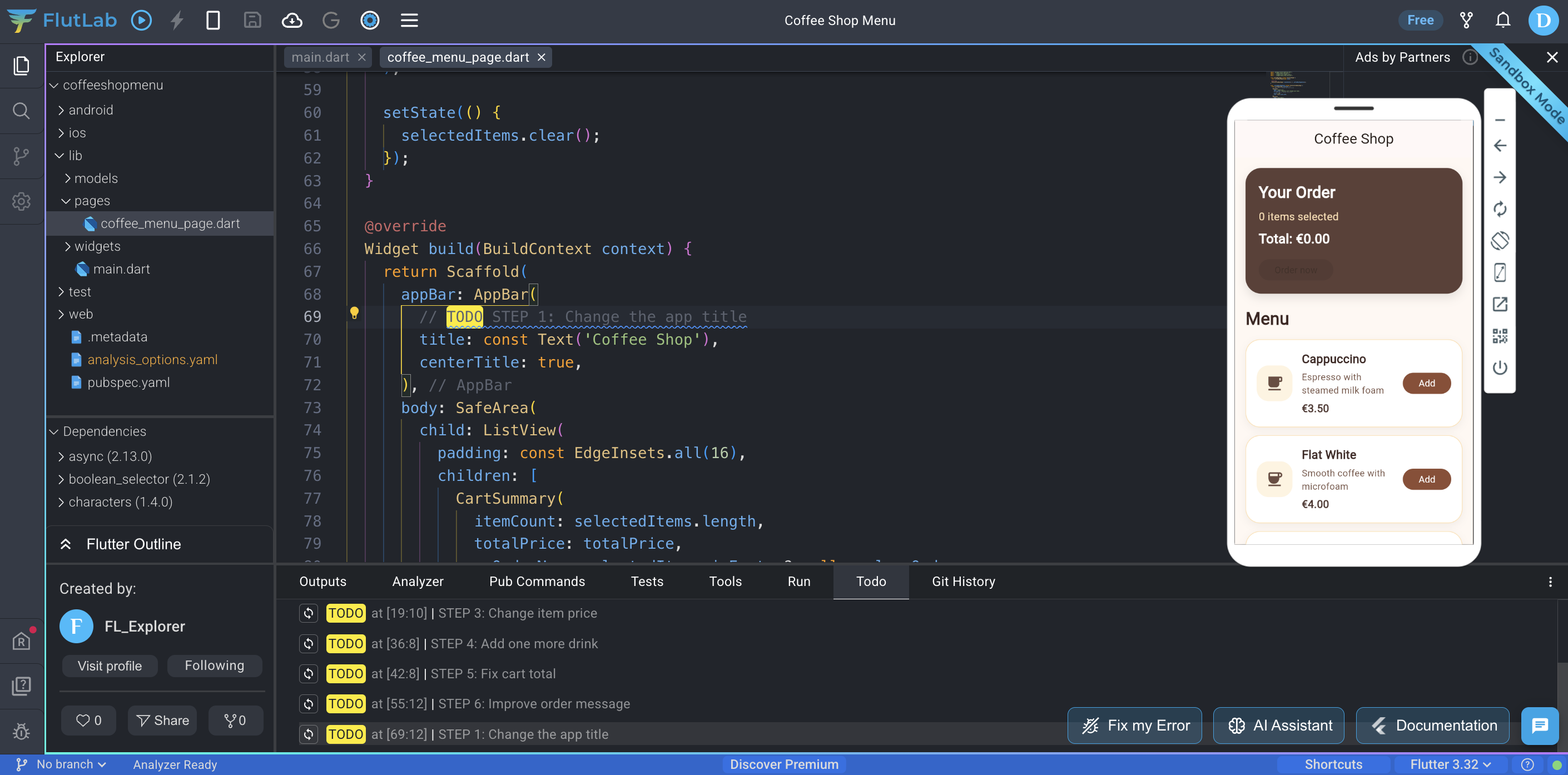
In Sandbox, open the Todo tab in the bottom panel. You will see all project steps listed there.
Click STEP 1: Change the app title.
Expected result:
FlutLab opens the exact code location for this task.
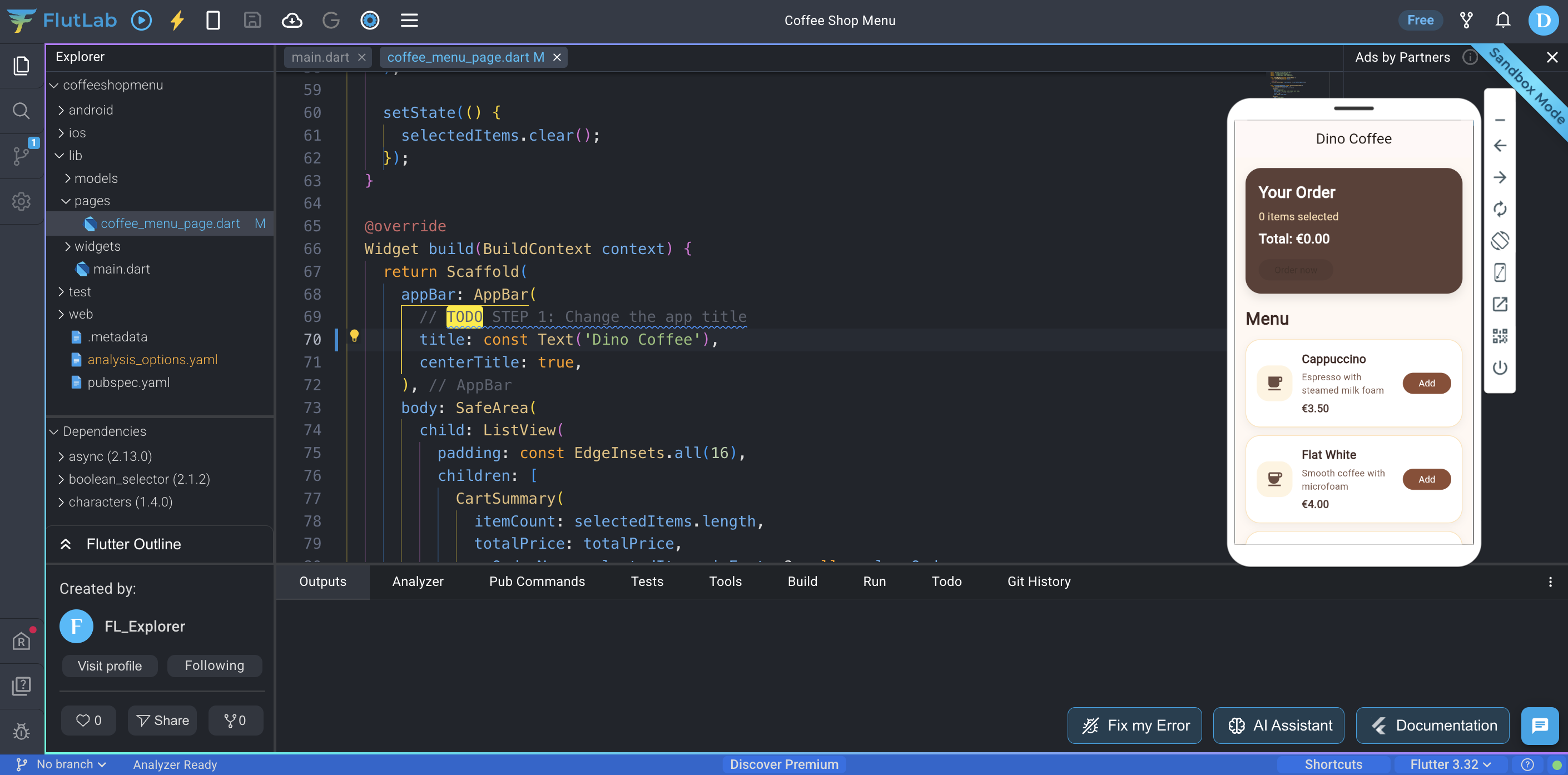
Step 1: Change the app title
In the opened file, change:
'Coffee Shop'to
'Dino Coffee'Press Hot Reload (Ctrl+R) the app.
Expected result:
The app bar title changes.
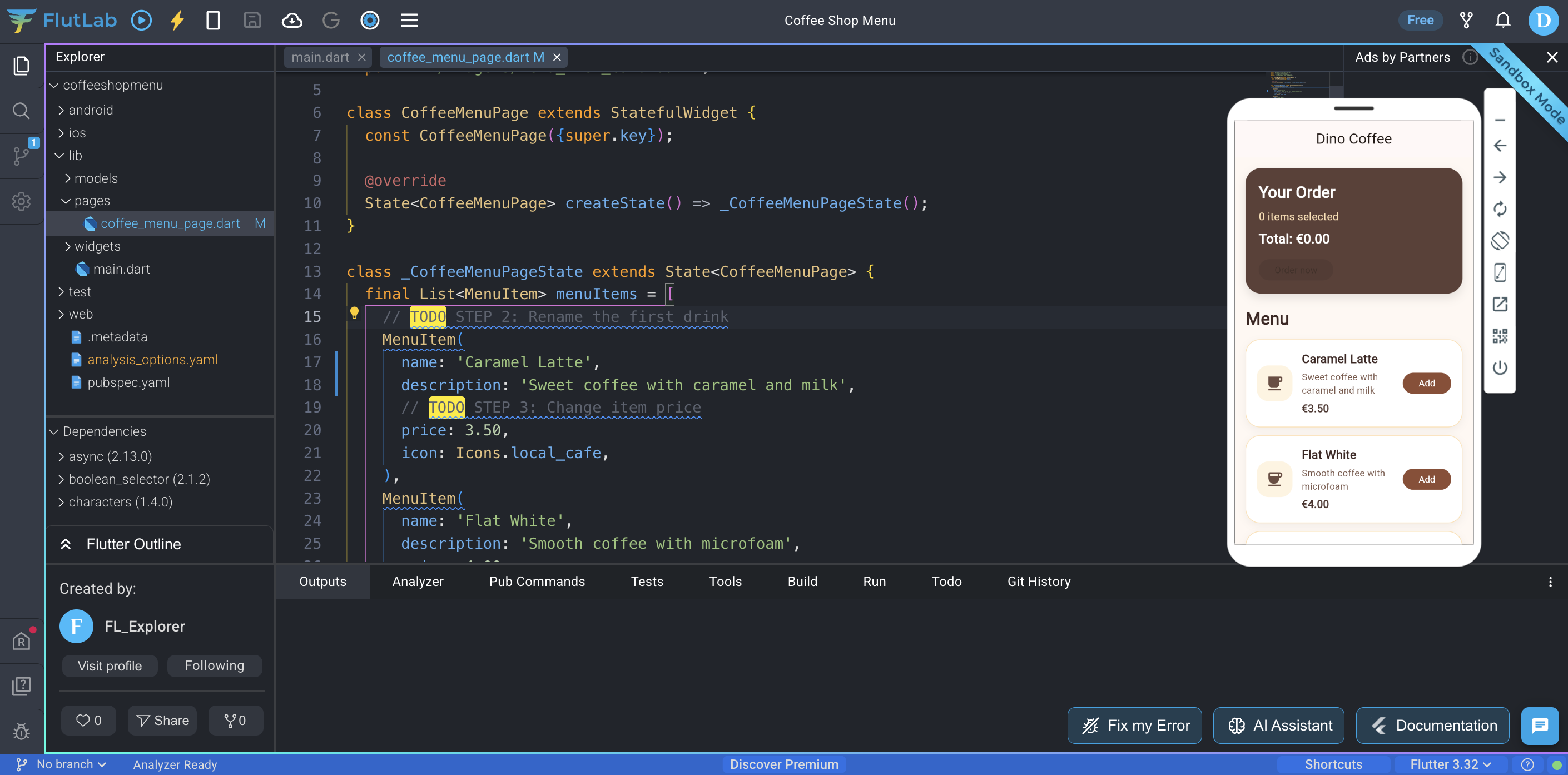
Step 2: Rename the first drink
Go back to the Todo tab.
Click STEP 2: Rename the first drink
Replace:
name: 'Cappuccino',
description: 'Espresso with steamed milk foam',
with:
name: 'Caramel Latte',
description: 'Sweet coffee with caramel and milk',
Press Hot Reload (Ctrl+R) the app.
Expected result:
The first menu card shows the new drink name and description.
Step 3: Change a price
Go to Todo → STEP 3: Change item price
Replace:
price: 3.50with:
price: 4.20Press Hot Reload.
Expected result:
The item price changes on the card.
Step 4: Add one more menu item
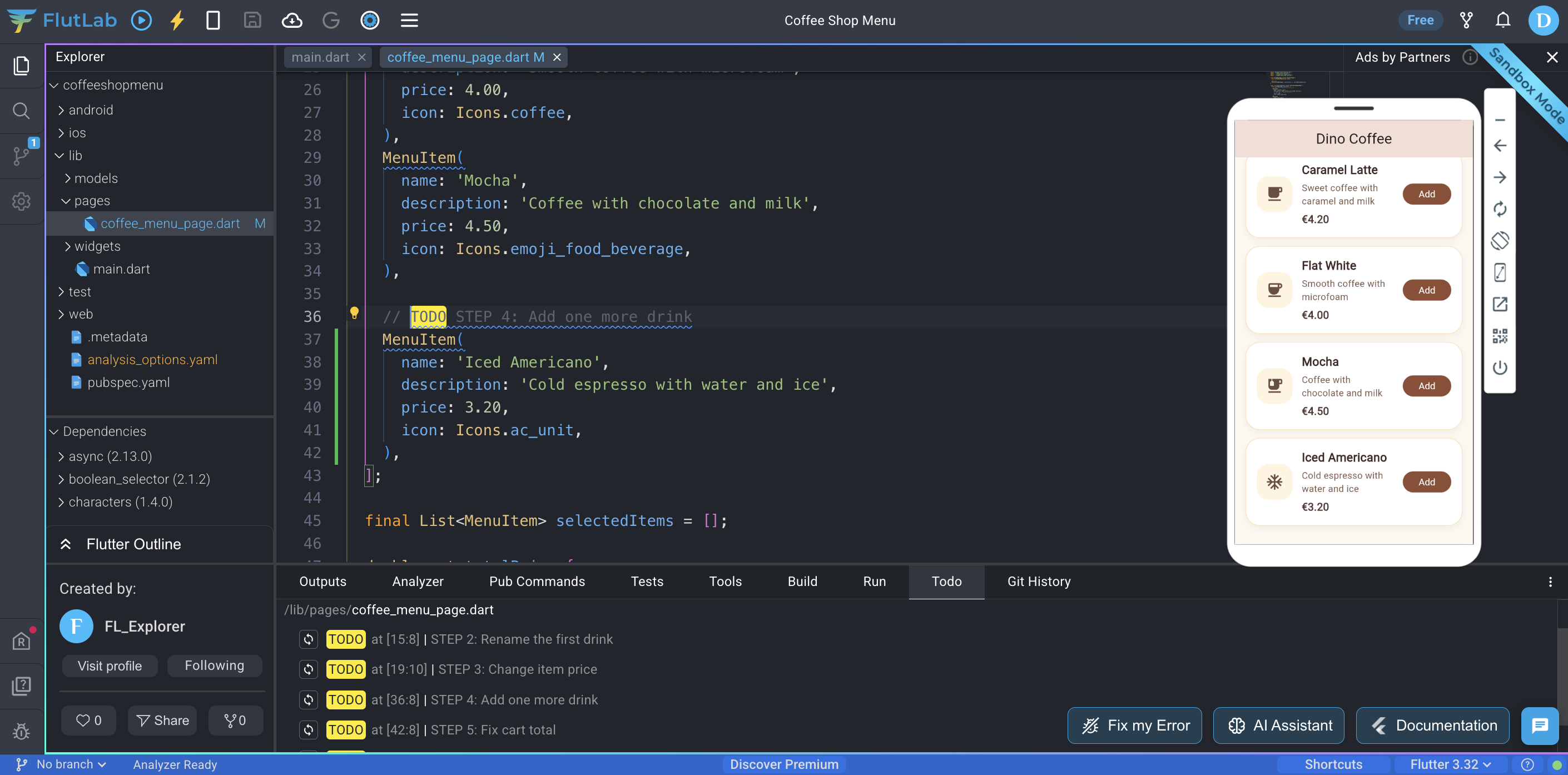
Go to Todo → STEP 4: Add one more drink
Add this item inside the list:
MenuItem(
  name: 'Iced Americano',
  description: 'Cold espresso with water and ice',
  price: 3.20,
  icon: Icons.ac_unit,
),
Press Hot Reload.
Expected result:
A new drink appears in the menu.
Step 5: Fix cart total logic
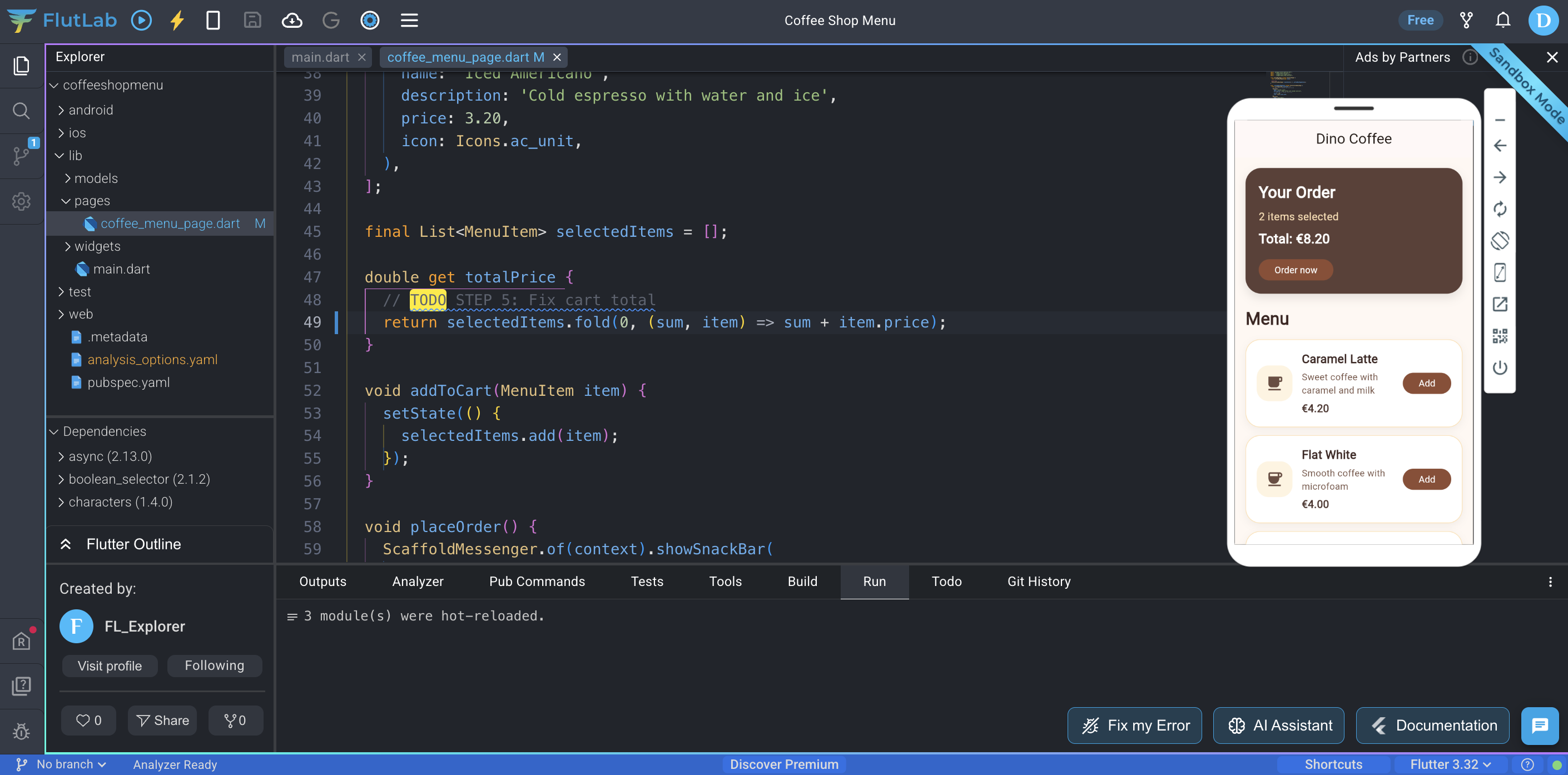
Go to Todo → STEP 5: Fix cart total
Replace:
double get totalPrice {
  return 0;
}
with:
double get totalPrice {
  return selectedItems.fold(0, (sum, item) => sum + item.price);
}
Press Hot Reload.
Then press Add on a few drinks.
Expected result:
The total price updates correctly.
Step 6: Improve the order message
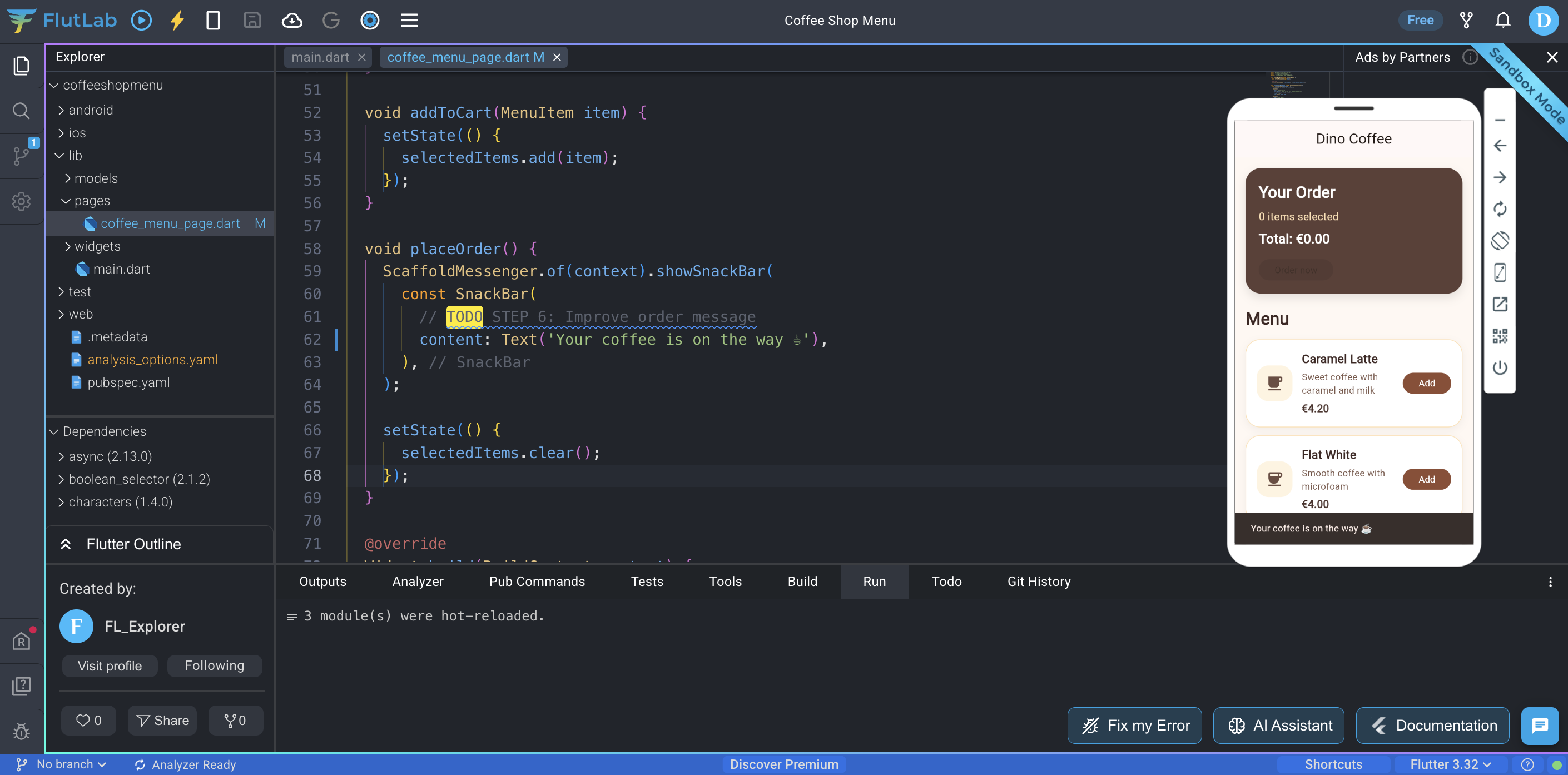
Go to Todo → STEP 6: Improve order message
Replace:
'Order sent'with:
'Your coffee is on the way ☕'Press Hot Reload.
Expected result:
After pressing Order now, you see the improved message.
Final result
You just:
-
edited a real app, not a blank project
-
navigated code using the Todo panel
-
changed real data (name, description, price)
-
added a new item to the app
-
fixed broken logic
-
saw results instantly after each change